Azure DevOps Entra authentication
Use a Microsoft Entra service principal to authenticate DX connections to Azure DevOps Services. This setup applies to the Repositories, Boards, Pipelines, Pull Commits, and Commits (Default branch) connectors.
Note: DX supports Microsoft Entra authentication only for Azure DevOps Services (cloud). Azure DevOps Server connections require a personal access token (PAT).
Before you begin
- Azure DevOps organization connected to the Microsoft Entra tenant that will contain the service principal, or access to an administrator who can connect it.
- Microsoft Entra access to register an application and add a client secret or certificate.
- Azure DevOps access to add the service principal to your organization and grant the required project and resource permissions.
Your organization registers and controls the application in its own Entra tenant. DX does not need an app registration in its own tenant. This uses the Microsoft Entra client credentials flow, so no user sign-in, redirect URI, or refresh token is required. DX requests short-lived Azure DevOps access tokens as needed.
Configure Microsoft Entra authentication
Step 1: Confirm the tenant connection
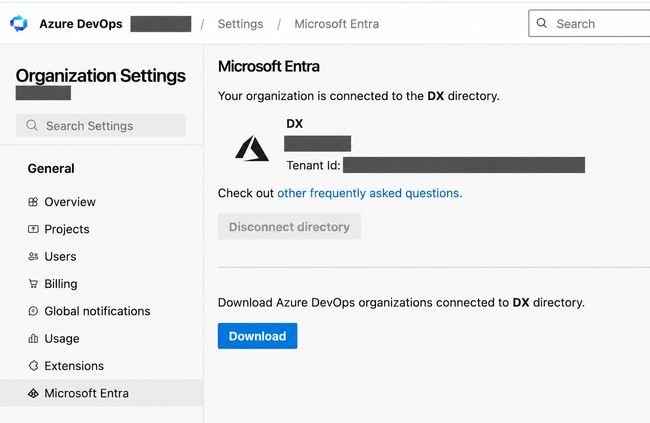
In Azure DevOps Services, open Organization settings → Microsoft Entra and confirm that the organization is connected to the tenant where you will register the application. If it is not connected, follow Microsoft’s directory connection instructions before continuing.
Step 2: Register an application
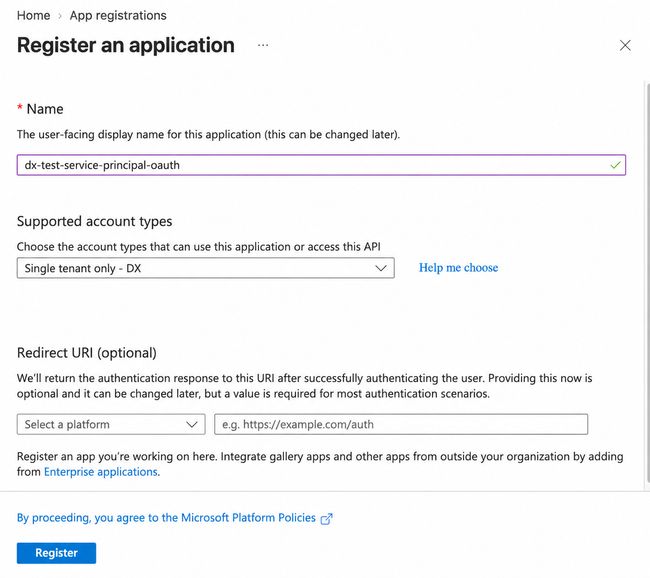
Register an application in that tenant. Leave the redirect URI empty for this service-to-service integration. Record its Directory (tenant) ID and Application (client) ID.
Step 3: Add a credential
Choose Client secret or Certificate below and add that credential to the app registration. Keep the credential details for the DX connection in Step 5.
Client secret
In the app registration, open Certificates & secrets → Client secrets and create a secret. Copy its Value when it is displayed. In DX, select Microsoft Entra client secret and enter the tenant ID, client ID, and client secret value. Renew the client secret in Entra and update the DX credential before it expires. See Microsoft’s client secret setup instructions. Microsoft recommends a certificate over a client secret for production use.
Certificate
Obtain an RSA private key and matching X.509 certificate. Follow Microsoft’s certificate recommendations for production use. Upload only the public certificate to App registrations → Certificates & secrets → Certificates in Entra. In DX, select Microsoft Entra certificate and enter the tenant ID, client ID, public certificate in PEM format, and matching unencrypted private key in PEM format.

Keep the private key in a protected location outside your source repository. You can revoke DX access by removing that certificate from the Entra app registration. Replace the certificate and DX credential before the certificate expires.
Step 4: Grant Azure DevOps access
In Azure DevOps, go to Organization settings → Users and select Add users. Find and select the app’s service principal from Enterprise applications.
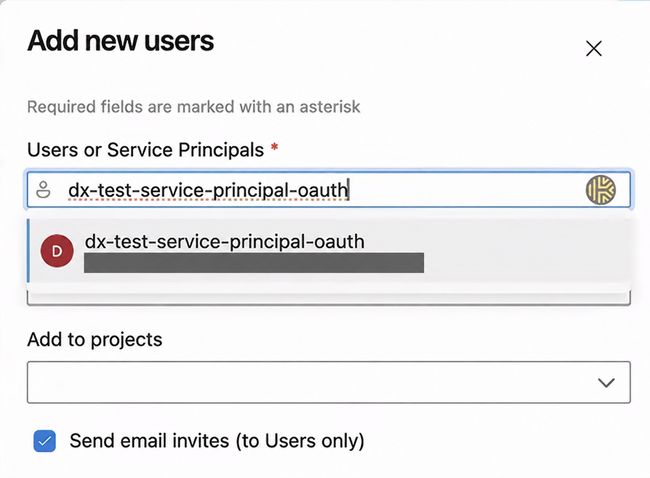
Assign the access level, projects, and resource permissions it needs. Azure Repos requires Basic access or higher. If Azure DevOps asks for an Object ID, use the Enterprise application Object ID, not the App registration Object ID or Application (client) ID.
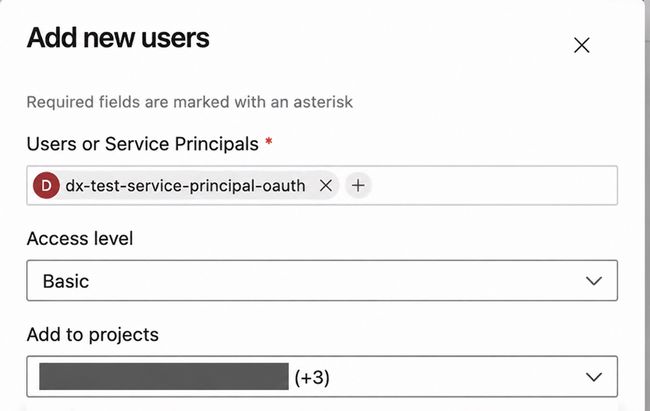
After adding the service principal, confirm that it appears in the Users list with the intended access level.
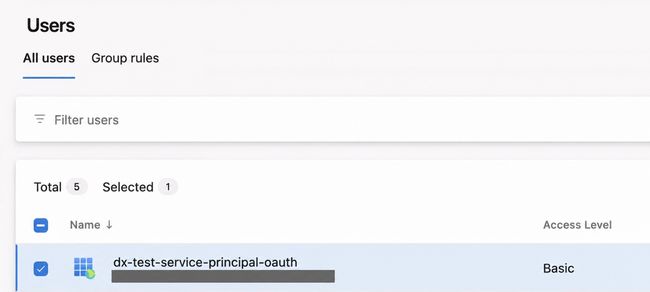
Repeat this step for every Azure DevOps organization the credential will access. See Microsoft’s service principal setup and permissions guide.
Step 5: Connect in DX
In DX, go to Connections and select + Connection. Choose the Azure DevOps Services (cloud) connector for the data you want to import: Repositories, Boards, Pipelines, Pull Commits, or Commits (Default branch). Microsoft Entra authentication is available only for these cloud connections; Azure DevOps Server connections require a PAT.
Select Microsoft Entra client secret or Microsoft Entra certificate, enter the fields listed in Step 3, and verify the connection. Each connection credential has its own authentication settings. Set up the Repositories connector before adding the other Azure DevOps connectors.
The Azure DevOps organization and project access come from the service principal’s Azure DevOps permissions; Entra application API permissions do not grant that access.
Next steps
Continue with the connector you are configuring:
- Azure DevOps Repositories: Set up repository and pull request imports, including optional webhooks.
- Azure DevOps Boards: Set up work item imports.
- Azure DevOps Pipelines: Set up pipeline imports.
- Azure DevOps Pull Commits: Set up imports of commits associated with pull requests.
- Azure DevOps Commits (Default branch): Set up default branch commit imports.
For API-based credential management, see the shared Azure DevOps credential fields.