Self-service
Note: Self-service is only available to Fabric customers.
Self-service makes it possible to automate essential workflows and share access to those workflows with others.
Common use cases for automating workflows include:
- Provisioning: Scaffold a microservice from a template, add cloud resources, or configure a deployment strategy.
- Day-2 operations: Update autoscaling settings, set environment variables, or toggle a feature flag.
- Incident response: Declare an incident, freeze deployments, or force-merge a pull request.
- Development: Spin up a developer environment, train an ML model, or run an ETL process.
Configuring workflows

Basic details
The workflow’s name and description help users understand the purpose of the workflow. The icon and color help to visually distinguish it from other workflows. The identifier is a machine-readable ID of the workflow and is used when running a workflow from the API.
Scope
A workflow’s scope can be either global or specific to a catalog entity. Both types of workflows can be run from the Self-service workflows page.
Entity-specific workflows have additional variables available when the workflow’s HTTP request is sent. They can also be run from the Workflows button at the top of the Entity Details page for applicable entities:

When creating entity-specific workflows, you’ll need to select the entity type(s) that they will apply to. Additionally, these workflows can then be scoped to allow only entity owners to run them (see Workflow access and permissions).
Execution type
A workflow’s execution type can be either simple or event-driven.
Simple
- Behavior: Changes to “Complete” status immediately when its HTTP request is sent. See Successful and failed requests for details.
- Example use cases:
- Call the Gitlab API to freeze deployments for a service.
- Call the Amplitude API to toggle a feature flag on/off.
- Call the Slack API to send a pre-defined message in a channel.
Event-driven
- Behavior: Remains in the “In Progress” status after a successful HTTP response. The workflow is then available to receive events and status changes through the web API. See Sending custom events for more details.
- Example use cases:
- Dispatch a GitHub Actions workflow to provision a single-tenant app instance, reporting on steps like creating the database, deploying pods, and configuring the environment.
- Trigger an AWS Lambda function to spin up a developer environment and make it available publicly for 5 days, reporting on the deployment and configuration steps and adding a link to the environment’s public URL.
- Start an Airflow DAG to fetch some traffic data, transform and enrich it, and store it in a data warehouse, reporting on progress along the way.
Access and permissions
There are four options to choose from when defining how users should have access to a workflow:
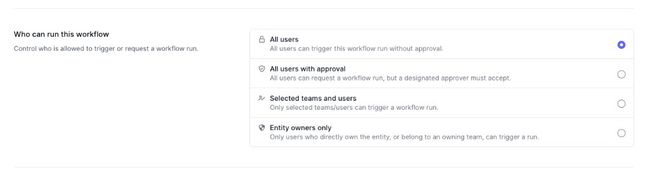
| Option | Description |
|---|---|
| All users | All users can trigger this workflow run without approval. |
| All users with approval | All users can request a workflow run, but a designated approver must accept before it runs. When this is selected, the workflow editor must set a list of users who can approve runs. |
| Selected teams and users | Only selected teams or users can trigger a workflow run. |
| Entity owners only | Only users who directly own the entity, or belong to an owning team, can trigger a run for that entity. This option is only available for entity-scoped workflows. |
Note: For enhanced security with Entity owners only, you can set your entity type to API-only. This prevents users from changing entity owners in the UI to gain the ability to run the workflow.
Input parameters

Input parameters define the values a user must provide, which are passed into the HTTP request during execution.
- The name and description fields help users understand what information they are being asked to provide.
- The identifier is machine-readable and used in request variables.
- The parameter can be marked as either required or optional.
- The type field applies constraints to the parameter. The following types are supported:
- string
- integer
- float
- boolean
- select
Note: With the introduction of the catalog entity scope, both “entity” and “service” parameters are no longer necessary. Instead, set the workflow to be entity-specific and use a variable to access information about the entity.
HTTP request

This defines the request sent to the external system, whether to trigger a one-off action or to begin a longer-running computation like dispatching a GitHub Actions Workflow.
The following components of the request can be defined within the workflow:
- Method
- URL
- Headers
- Body (optional)
Note: If the target system is behind a firewall or has inbound traffic restricted, allowlist the DX application’s IP addresses so requests can reach it.
Using variables in requests
Variables can be interpolated into the URL, headers, and request body of the workflow’s HTTP request. This makes it possible to customize the request based on context provided by the user.
The following variables are available to use in requests:
Workflow details
Information about the workflow and the current workflow run.
| Variable | Description | Example value |
|---|---|---|
{{run.id}} |
The ID of the current workflow run. Especially important for event-driven workflows, so an external system can send events back to the DX workflow. | 5smozotd7o8o |
{{workflow.identifier}} |
The identifier of the workflow. | provision-database |
{{workflow.name}} |
The name of the workflow. | Provision Database |
Parameters
Inputs provided by the user. These are dependent on the parameters defined in the previous section.
| Example parameter identifier | Variable syntax | Example value |
|---|---|---|
greeting |
{{data.greeting}} |
Hello, world! |
Entity details
Information about the current entity. Only available for entity-specific workflows.
| Variable | Description | Example value |
|---|---|---|
{{entity.identifier}} |
The identifier of the entity. | authentication-app |
{{entity.name}} |
The name of the entity. Will return an empty string if not set. | Authentication App |
Secrets
See Secrets. The value is substituted when the request is sent and is never displayed in the UI or API responses.
| Variable | Description | Example value |
|---|---|---|
{{secrets.<identifier>}} |
The value of the secret with this identifier. | {{secrets.github-pat}} |
Secrets
Secrets store sensitive values—API tokens, passwords, credentials—separately from a workflow’s HTTP request, so anyone editing the workflow can reference the value without ever seeing it. Secrets are always redacted in workflow run history and other logging.
Managing secrets
Users with permission to manage self-service workflows (see Permissions) can also manage self-service secrets. To add a secret, go to the Administration → Self-service secrets page. When creating the secret, the identifier can contain letters, digits, underscores, periods, and hyphens, and is what you’ll use to reference the secret in a workflow’s HTTP request.
Once a secret is saved, its value can’t be viewed by anyone, including the person who created it. To change the value, open the secret and enter a new one - a secret’s value can only be replaced, never revealed.
Each saved secret lists its reference (secrets.<identifier>) and the number of workflows that use it. Hover over the workflow count to see which workflows reference the secret. Click a secret to open it and edit its value or delete to remove it.
Adding a secret from the workflow editor
When editing a workflow’s HTTP request, the Secrets group under Variables lists every available secret by reference. Click Add secret at the bottom of the list to create a new secret without leaving the workflow editor. This opens the same dialog as Administration → Self-service secrets — the new secret becomes available in both places immediately after it’s created.

Running workflows
Triggering
A single instance of executing a workflow is called a workflow run. The ability to trigger or request a workflow run is determined by the workflow’s “Who can run this workflow” setting. Workflow runs can be triggered from:
- The main Self-Service page:

- The Entity Detail page (for entity-specific workflow runs):

When triggering a workflow run, a dialog appears showing its basic information. If the workflow has parameters, they appear as form fields. For entity-specific workflows run from the Self-Service page, an additional Entity field appears, allowing the user to specify the target entity.
Workflow runs can also be triggered via the web API. See the workflowRuns.trigger method for more details.
There is a delay of up to 30 minutes between the time a new entity is created and when a workflow run can be triggered for that entity. If you do not see your expected workflows associated with a new entity, check again after a few minutes.
Manual approval
When Who can run this workflow is set to All users with approval, the workflow requires manual approval. The workflow editor must set the list of users who can approve runs.

With this setting, triggering the workflow does not run it immediately. Instead, the workflow run enters a pending manual approval state. Approvers must then approve or reject the run from the Workflow Run Detail page. Once approval is granted, the workflow runs immediately.
When requesting to trigger a workflow that requires approval, the user can optionally notify approvers via Slack. If chosen, a Slack message is sent to inform the configured approvers that a run is waiting for approval.

Workflow Run Detail page
Once the workflow run is triggered, you will be redirected to the Workflow Run Detail page.
The right-hand panel shows basic details about the workflow, including: the user that triggered it and when; the entity (if applicable); and the inputs provided (if applicable). Once the workflow run is complete, this panel also shows the completed time and duration.
The left-hand panel shows a list of events relevant to the workflow:
- Triggered workflow run: displays when the workflow run was first triggered and by whom.
- Sent HTTP request: includes a “View” button to show more details about the HTTP request and response, or non-response error if applicable. Secrets are redacted from this view - see Secret redaction.
- Changed status: displays when the workflow run completed in either a “Success” or “Failed” state.

Additionally, workflow runs from event-driven workflows accept events provided by the web API. See Sending custom events.
Successful and failed requests
An HTTP request is considered successful if its response has a 2XX status code. All other status codes will be considered failed.
Non-response errors (connection refused, connection timed out, invalid SSL certificate, etc.) will also be considered failed.
Secret redaction
To keep a value from ever being visible to anyone editing the workflow — including you — store it as a secret and reference it with {{secrets.<identifier>}}.
Additionally, HTTP request and response header keys are scanned for substrings that imply they contain secrets (API tokens, passwords, credentials, etc.). If found, the corresponding values are replaced with [REDACTED] when stored in DX databases and when shown in the UI and API responses.
The following case-insensitive substrings will be searched:
authcreddigestjwtkeypasswordsecretssotoken
Sending custom events
Event-driven workflows accept events provided by the web API. This enables a workflow to be triggered from DX while the computational work is performed in an external system — DX serves as the interface to invoke it and visualize its status.
Examples of external systems include:
- Continuous Integration (CI) pipelines: GitHub Actions, Gitlab CI, CircleCI, Jenkins, etc.
- Other workflow platforms: Argo Workflows, Airflow, Tekton, etc.
- General-purpose computing: AWS Lambda, Cloudflare workers, your organization’s web services, etc.
Setup
Step 1: Generate a web API token with the workflowRuns:writeEvents scope. Define a secret in your pipeline platform with this value so it can be used in a curl request later.
Step 2: In your pipeline platform, configure a workflow script to call the DX Web API and post events back to the DX workflow, using the token and the workflow run ID supplied during the initial dispatch.
Step 3: Configure the DX workflow’s HTTP request to call your pipeline platform and dispatch the workflow there, including the {{run.id}} variable in the headers or body for access by the external platform.
See Example workflows for a complete walkthrough of this process using GitHub Actions.
API endpoints for workflow events
The following API endpoints are available:
- workflowRuns.postMessage: Post a markdown-supported message. Useful for logging “big-picture” events in the workflow (e.g.
Installing script dependencies...,Created database, orCreated Kubernetes namespace). - workflowRuns.addLink: Associate a link with a workflow run. Useful for connecting the DX workflow to the external system, like a GitHub Actions job, or to other artifacts created by the workflow.
- workflowRuns.changeStatus: Change the execution status of the workflow run to either “Success” or “Failed”.
The following screenshot shows an event-driven workflow run with messages, links, and a status change posted by an external system.
