Outlook Calendar
By integrating Outlook Calendar with DX, you can measure time spent in meetings to analyze and improve developer focus time.
- DX imports historical events from Outlook Calendar, only for DX contributors.
- When an Outlook calendar is private (i.e., marked as “Not shared” to be viewed by other organization members), DX will not import its events.
To ensure accuracy in what is categorized as a meeting, DX excludes events with duration of less than 15 minutes or more than 4 hours, as well as events with only a single attendee.
Prerequisites
To connect Outlook Calendar to DX, you need:
- Access to Microsoft Entra dashboard
- Be able to create a Microsoft Entra application and grant consent to the application for the tenant
Setup instructions
Follow the steps below to connect Outlook calendar to DX.
Step 1 - Register a new app
- Go to the Microsoft Entra dashboard.
- Got to App registrations > New registration
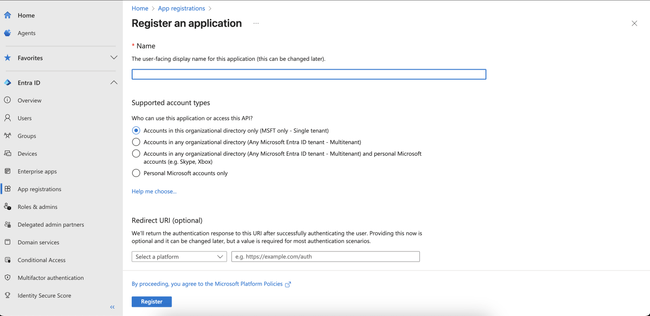
- You can choose between the first two options based on the account type
- Leave “Redirect URI” as blank and click on Register

Step 2 - Grant API permissions to the application
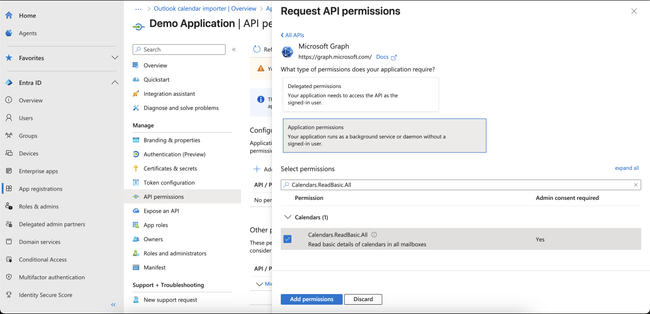
- Go to the API permissions > Add a permission.
- Click on Microsoft Graph > Application permissions.
- Search for
Calendars.ReadBasic.Allpermission, select it and click on “Add permission”.
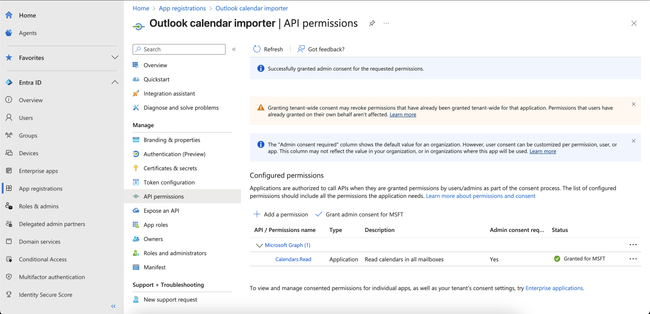
- Click on “Grant admin consent for [Your Organization]” (The status should be “Granted for [Your Organization]”).


Step 3 - Generate client secret
- Go to the Certificates & secrets.
- Click on New client secret.
- Type in appropriate description and expiration time.
- Click on “Add” and copy the secret value


Step 4 - Copy client ID and tenant ID
Copy Application (client) ID and Directory (tenant) ID from the App overview page.

Step 5 — Restrict org-wide access using Microsoft Graph RBAC (Optional)
By default, granting Calendars.ReadBasic.All to an app gives it organization-wide access.
To scope this down, you can restrict access to only certain users or groups via Microsoft Entra RBAC using Application Access Policies.
Enable RBAC restriction
-
Create a mail-enabled security group
- In Microsoft Entra Admin Center, create a mail-enabled security group.
- Add the subset of users whose calendars the connector should access.
-
Create an Application Access Policy
- Connect to Exchange Online PowerShell:
Connect-ExchangeOnline -UserPrincipalName <admin@yourtenant.com> - Create the policy to scope access:
New-ApplicationAccessPolicy `
  -AppId "<client-id-of-your-app>" `
  -PolicyScopeGroupId "<mail-enabled-security-group-id>" `
  -AccessRight RestrictAccess `
  -Description "Restrict Outlook Calendar access to members of this group"
- Connect to Exchange Online PowerShell:
-
Validate the policy
Run the following to check access:Test-ApplicationAccessPolicy ` -AppId "<client-id-of-your-app>" ` -Identity "<user@domain.com>"
Step 6- Finish setup
- Navigate to the connections page in DX and select “+ Connection” in the top right.
- Enter the credentials you have generated in the previous steps—refer to the information below for errors and troubleshooting.
API reference
The table below lists the specific API endpoints that are used by DX.
| Endpoint | Documentation |
|---|---|
| /users/{userEmail}/calendar/calendarView | Link |
| /users/{userEmail}/calendar/calendarPermissions | Link |
| /oauth2/v2.0/token | Link |
Errors
The table below lists potential error codes when adding a connection in DX.
| Error | Description |
|---|---|
invalid_credentials |
Your API credentials entered are not valid. |
invalid_permissions |
Your API token does not have the permissions required by DX. |