Google Calendar
By integrating Google Calendar with DX, you can measure time spent in meetings to analyze and improve developer focus time.
- DX imports historical events from Google Calendar, only for DX contributors.
- When a Google calendar is private (i.e., marked as not available to be viewed by other workspace members), DX will not import its events.
- Titles of the events are not imported by default, but can be enabled by contacting the DX account manager.
- When a Google calendar is set to only show free/busy but not event details, DX will import the events with “free” or “busy” titles.
To ensure accuracy in what is categorized as a meeting, DX excludes events with duration of less than 15 minutes or more than 4 hours, as well as events with only a single attendee.
Prerequisites
To connect Google Calendar to DX, you need:
- a Google Cloud service account
- Domain Wide Delegation enabled
Setup instructions
Follow the steps below to connect Google calendar to DX.
Step 1- Enable API
Enable the Google Calendar API using the following steps:
- Go to the API Console.
- From the projects list, select a project or create a new one.
- If the APIs & services page isn’t already open, open the console left side menu and select APIs & services > Library.
- Click on Google Calendar API, using the search function if needed.
- Click ENABLE.
For more information, see Enable and disable APIs.
Step 2- Create service account
In this step, you’ll set up a service account to make authorized API calls through domain-wide delegation.
To set up a service account, follow these steps:
- In the Google Cloud console, go to the Create service account and select or create a Google Cloud project.
- Enter a service account name to display in the Google Cloud console, and edit the service account ID if desired (you cannot change it later).
- Optional: Enter a description of the service account.
- If you don’t want to set access controls now, click Done to finish creating the service account. To set access controls now, click Create and continue.
- Optional: Choose one or more IAM roles to grant to the service account on the project.
- When you are done adding roles, click Continue.
- Optional: In the Service account users role field, add members that need to attach the service account to other resources.
- Optional: In the Service account admins role field, add members that need to manage the service account.
- Click Done to finish creating the service account.
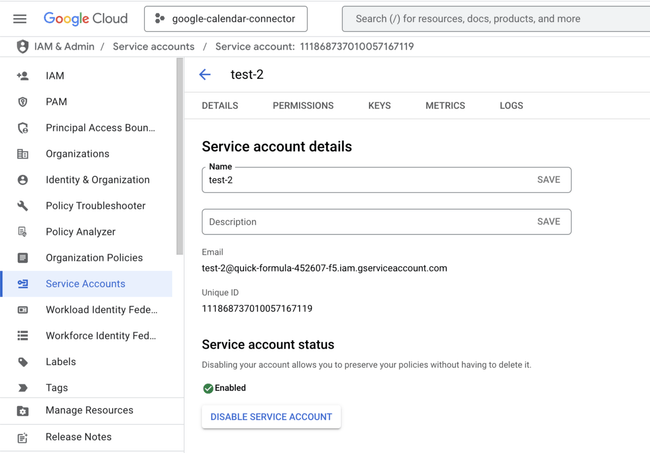
- The Unique ID of the service account is the Client ID that needs to be entered when enabling Domain-wide delegation in the next step.
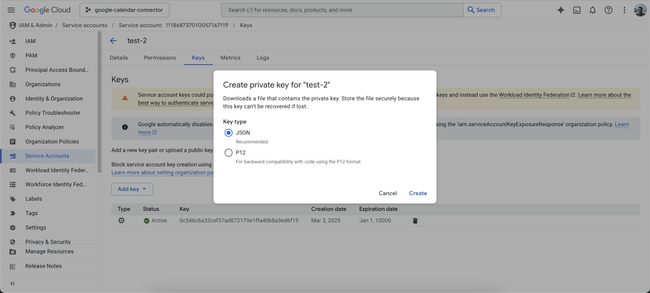
- Create a private key by browsing to Keys > Add key, selecting JSON, then clicking Create.
- Download the JSON file and copy the private key (example below) which you will enter into DX.
-----BEGIN PRIVATE KEY-----
MIIEvAIBADANBgkqhkiG9w0BAQEFAASCBK...
(rest of base64-encoded data)
-----END PRIVATE KEY-----


For more information, see Create service accounts.
Step 3- Enable domain-wide delegation
Domain-wide delegation lets you grant client applications permission to access your Workspace user data without requiring consent.
- Sign in to the Google Admin Console as a super administrator.
- If you aren’t using a super administrator account, you can’t complete these steps.
- Browse to Security > Access and data control > API controls > Manage Domain Wide Delegation.
- Click Add new.
- Enter the Client ID for either the service account or the OAuth2 client.
- In OAuth Scopes, add both of the following then click Authorize:
- https://www.googleapis.com/auth/calendar.readonly
- https://www.googleapis.com/auth/calendar.acls.readonly
- If you get an error, the client ID might not be registered with Google or there might be duplicate or unsupported scopes.
- If Multi-party Approval is enabled for your organization, authorizing domain-wide delegation for a client app requires approval from another super admin.
- Point to the new client ID, click View details and make sure that every scope is listed.
- If a scope is not listed, click Edit and enter the missing scope.
For more information, see Control API access with domain-wide delegation.
Step 4- Finish setup
- Navigate to the connections page in DX and select “+ Connection” in the top right.
- Enter the credentials you have generated in the previous steps—refer to the information below for errors and troubleshooting.
API reference
The table below lists the specific API endpoints that are used by DX.
| Endpoint | Documentation |
|---|---|
| /calendar/v3/calendars/calendarId/events | Link |
Curl commands
When connection verification fails
When DX verifies a Google Calendar connection, it checks if it can access calendar events using the service account and domain-wide delegation. If your connection is failing, you can test these endpoints directly using the curl commands below to troubleshoot the issue.
Step 1: Generate OAuth2 Token
First, generate an OAuth2 token using your service account credentials:
SERVICE_ACCOUNT_EMAIL="your-service-account@your-project.iam.gserviceaccount.com"
PRIVATE_KEY_FILE="PRIVATE_KEY_FILE"
SCOPES="https://www.googleapis.com/auth/calendar.readonly https://www.googleapis.com/auth/calendar.acls.readonly"

b64url(){ base64 | tr -d '\n=' | tr '+/' '-_'; }

HEADER=$(printf '{"alg":"RS256","typ":"JWT"}' | b64url)
NOW=$(date +%s); EXPIRY=$((NOW + 3600))
PAYLOAD=$(printf '{"iss":"%s","scope":"%s","aud":"https://oauth2.googleapis.com/token","iat":%s,"exp":%s}' \
  "$SERVICE_ACCOUNT_EMAIL" "$SCOPES" "$NOW" "$EXPIRY" | b64url)

tmp=$(mktemp)
tr -d '\r' < "$PRIVATE_KEY_FILE" > "$tmp"
SIGNATURE=$(printf '%s' "$HEADER.$PAYLOAD" | openssl dgst -sha256 -sign "$tmp" -binary | b64url)
rm -f "$tmp"

JWT="$HEADER.$PAYLOAD.$SIGNATURE"
RESPONSE=$(curl -s -X POST https://oauth2.googleapis.com/token \
  -d "grant_type=urn:ietf:params:oauth:grant-type:jwt-bearer&assertion=$JWT")
ACCESS_TOKEN=$(printf '%s' "$RESPONSE" | sed -n 's/.*"access_token":"\([^"]*\)".*/\1/p')
echo "$ACCESS_TOKEN"
Step 2: Test Endpoints
Replace YOUR_ACCESS_TOKEN and USER_EMAIL with your actual values before running these commands.
1. Test Calendar Events Access
Once you have an access token, test calendar events access:
curl -X GET 'https://www.googleapis.com/calendar/v3/calendars/USER_EMAIL/events?maxResults=1' -H 'Authorization: Bearer YOUR_ACCESS_TOKEN' -H 'Accept: application/json'2. Test Calendar ACLs Access
Test access to calendar ACL information:
curl -X GET 'https://www.googleapis.com/calendar/v3/calendars/USER_EMAIL/acl' -H 'Authorization: Bearer YOUR_ACCESS_TOKEN' -H 'Accept: application/json'The response should include calendar events or ACL information with the required permissions (calendar.readonly and calendar.acls.readonly). If you receive a 401 Unauthorized error, your OAuth2 token may be invalid or expired. If you receive a 403 Forbidden error, your service account may not have domain-wide delegation enabled or the required scopes.
Errors
The table below lists potential error codes when adding a connection in DX.
| Error | Description |
|---|---|
invalid_credentials |
Your API credentials entered are not valid. |
invalid_permissions |
Your API token does not have the permissions required by DX. |
invalid_pem |
The private PEM key you entered is formatted incorrectly. |